Claude in Chrome: Your AI Copilot in the Browser for Miles & Award Flights (2026)
Step-by-step guide: Claude controls your Chrome browser - clicking through award calendars, live-verifying seats.aero finds, reviewing eCoupons. Both paths explained: Chrome extension (side panel) and Claude Code via MCP.
Status:
Quick answer: Claude in Chrome is an official browser extension by Anthropic that lets Claude operate your Chrome browser directly - clicking, reading, filling forms, managing tabs. There are two ways to use it: (1) Directly in Chrome via the side panel - install, sign in, start chatting. (2) From Claude Code - the AI terminal connects to your browser via
claude --chromeand combines browser control with everything else Claude Code can do (e.g. the seats.aero API). For miles collectors, that means: Claude clicks through the Miles & More award calendar, live-verifies seats.aero finds on the airline website, reviews PAYBACK eCoupons and compares cash prices. Included in every paid Claude plan (from ~€18/month), setup takes 5 minutes. This guide walks you step by step from zero to your first result.
In the guide to automated award flight search I showed how Claude Code with the seats.aero API searches dozens of airlines for award availability in seconds. The guide was well received - and one question kept coming up: “What about Claude and Google Chrome? Can’t Claude search directly in the browser?”
The answer: Yes, it can. And it is the perfect complement to the API method.
Claude in Chrome is the official browser extension by Anthropic. It connects Claude to your real Chrome browser - Claude sees what you see, and can click, type, scroll and switch between tabs. You describe what you want in plain language and watch Claude work its way through the websites.
And the best part: There are two ways to use it - directly in Chrome via the side panel (the easy path) or from Claude Code (the power path, which can be combined with the seats.aero method into a single workflow).
In this guide I walk you step by step through both paths - from installation to your first finished award table. At the end you will find a prompt library with 6 ready-made recipes to copy.
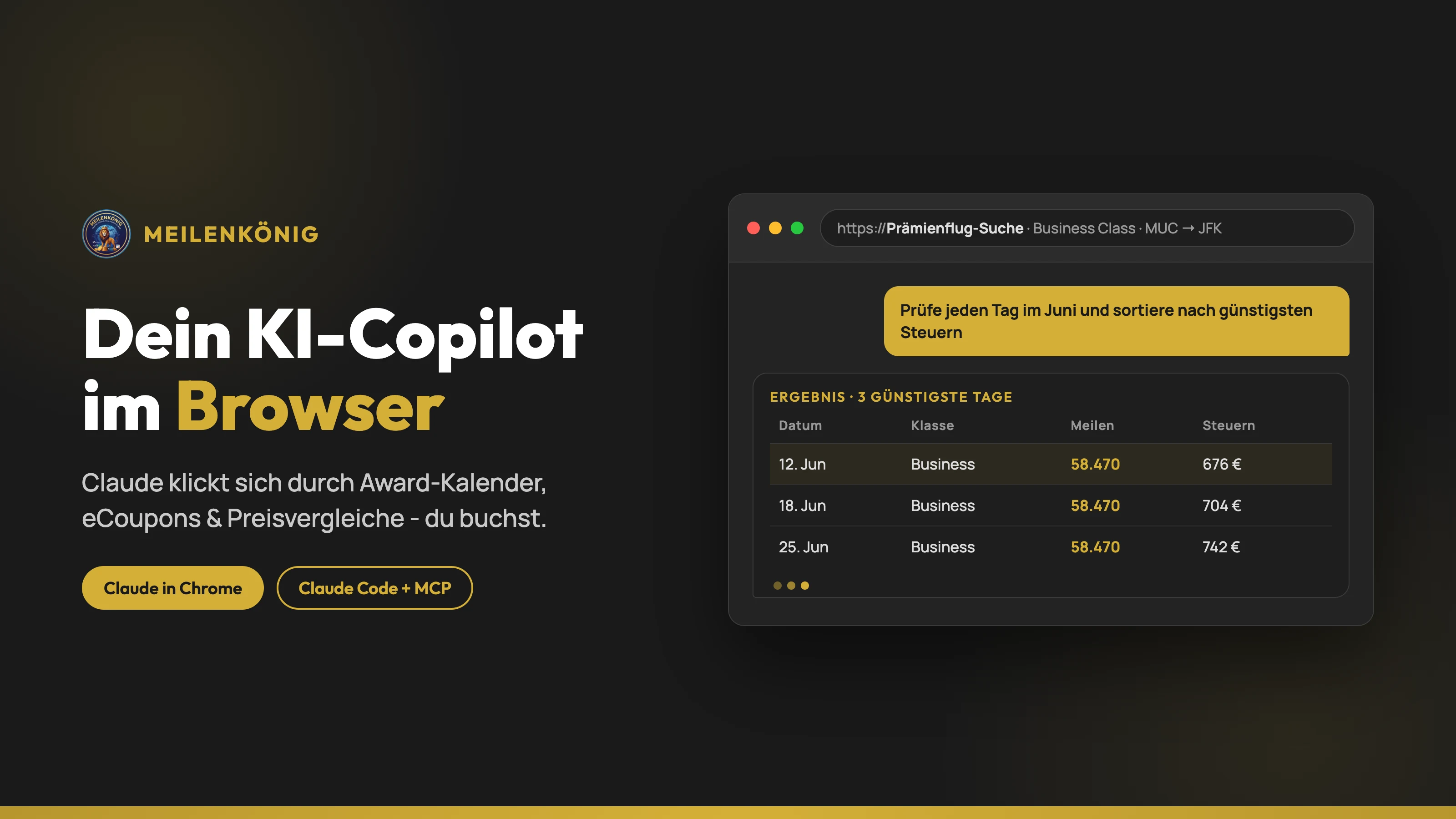
What is Claude in Chrome - and how does it differ from the seats.aero method?
Both methods automate your miles research, but in different ways:
| seats.aero API (previous guide) | Claude in Chrome (this guide) | |
|---|---|---|
| How it works | Queries a database (scans of 25+ programs) | Operates real websites in your browser |
| Strength | Mass search: dozens of routes and months in seconds | Live data: exactly what the website shows RIGHT NOW |
| Data freshness | Snapshot (can be hours old) | Real-time |
| Logged-in view | No | Yes - Claude works in your browser session |
| Extra costs | ~€9/month (seats.aero Pro) | None - included in every paid Claude plan |
| Ideal for | Broad availability scans | Verification, dynamic prices, sites without an API |
The combination is the real trick: seats.aero finds the candidates at scale, Claude in Chrome verifies the hits live on the airline website - before you transfer miles or book.
And: Many miles tasks have no API at all. PAYBACK eCoupons, the Miles & More award calendar with dynamic prices, AMEX promotion pages - all of that exists only as a website. That is exactly where Claude in Chrome plays its strength.
What you need
| Component | Cost | Purpose |
|---|---|---|
| Google Chrome | Free | The browser (no Firefox/Safari, not mobile; via Claude Code also Edge & co.) |
| Claude subscription | From ~€18/month (Claude Pro) | The extension is available for all paid plans (Pro, Max, Team, Enterprise) |
| Claude in Chrome extension | Free | Connects Claude to your browser (basis for BOTH paths) |
| Claude Code (only for path 2) | Included in the plan | The AI terminal from the seats.aero guide |
If you already use Claude Pro for the seats.aero method, you pay nothing extra - the extension and Claude Code are included in the plan.
Step 1: Get a Claude subscription (if you don’t have one yet)
The extension only works with a paid plan:
- Go to claude.ai and create an account (or sign in)
- Under Settings → Subscription choose the Pro plan (from ~€18/month) - it covers everything in this guide
- Done - this account is also your login for the extension
Already have Claude Pro? Then skip straight to step 2.
Step 2: Install the extension (3 minutes)
Whichever path you choose later - you always need the Chrome extension:
- Open Google Chrome (important: not Firefox or Safari)
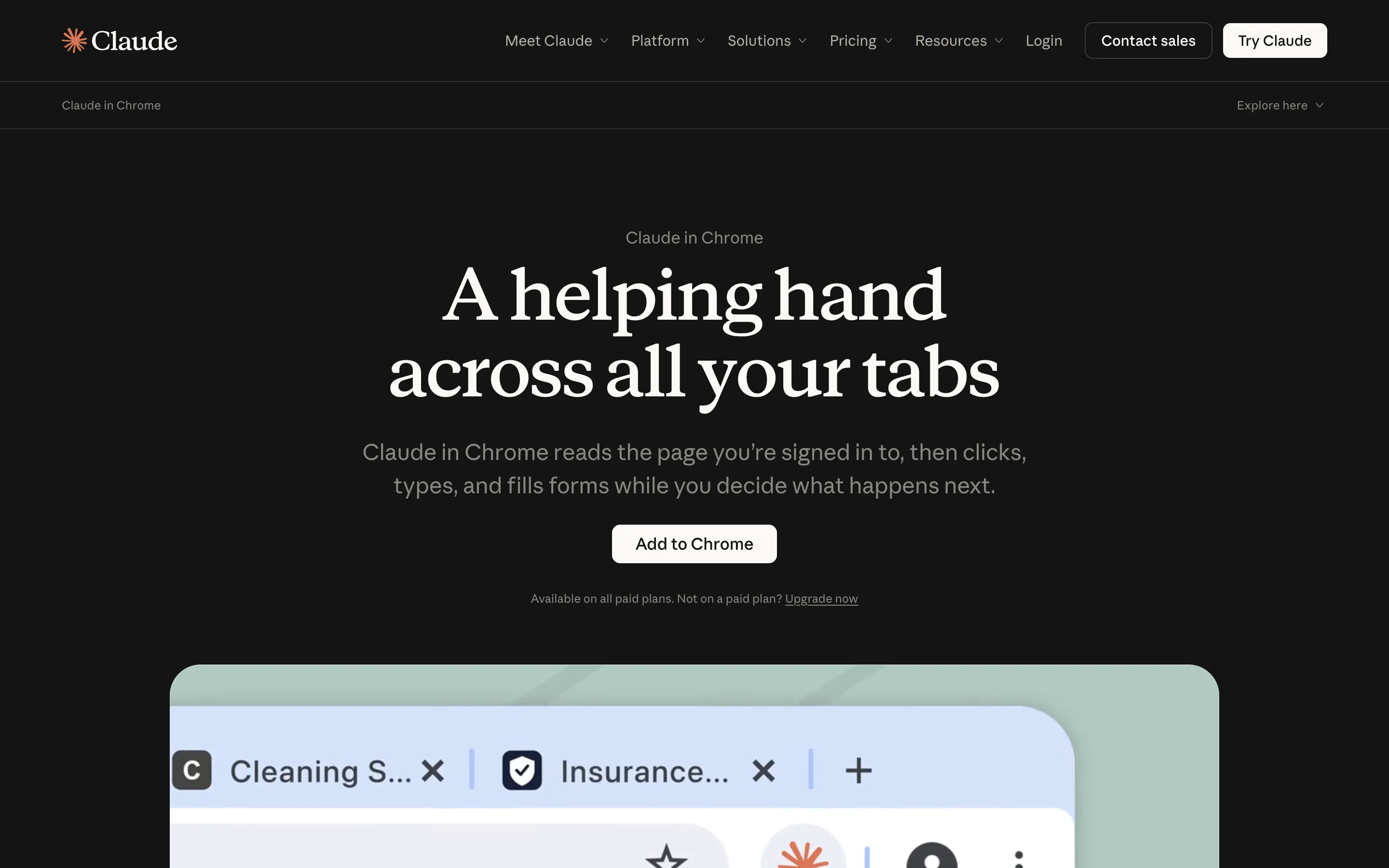
- Go to the official page claude.com/claude-in-chrome and click “Add to Chrome” - it takes you straight to the correct entry in the Chrome Web Store:
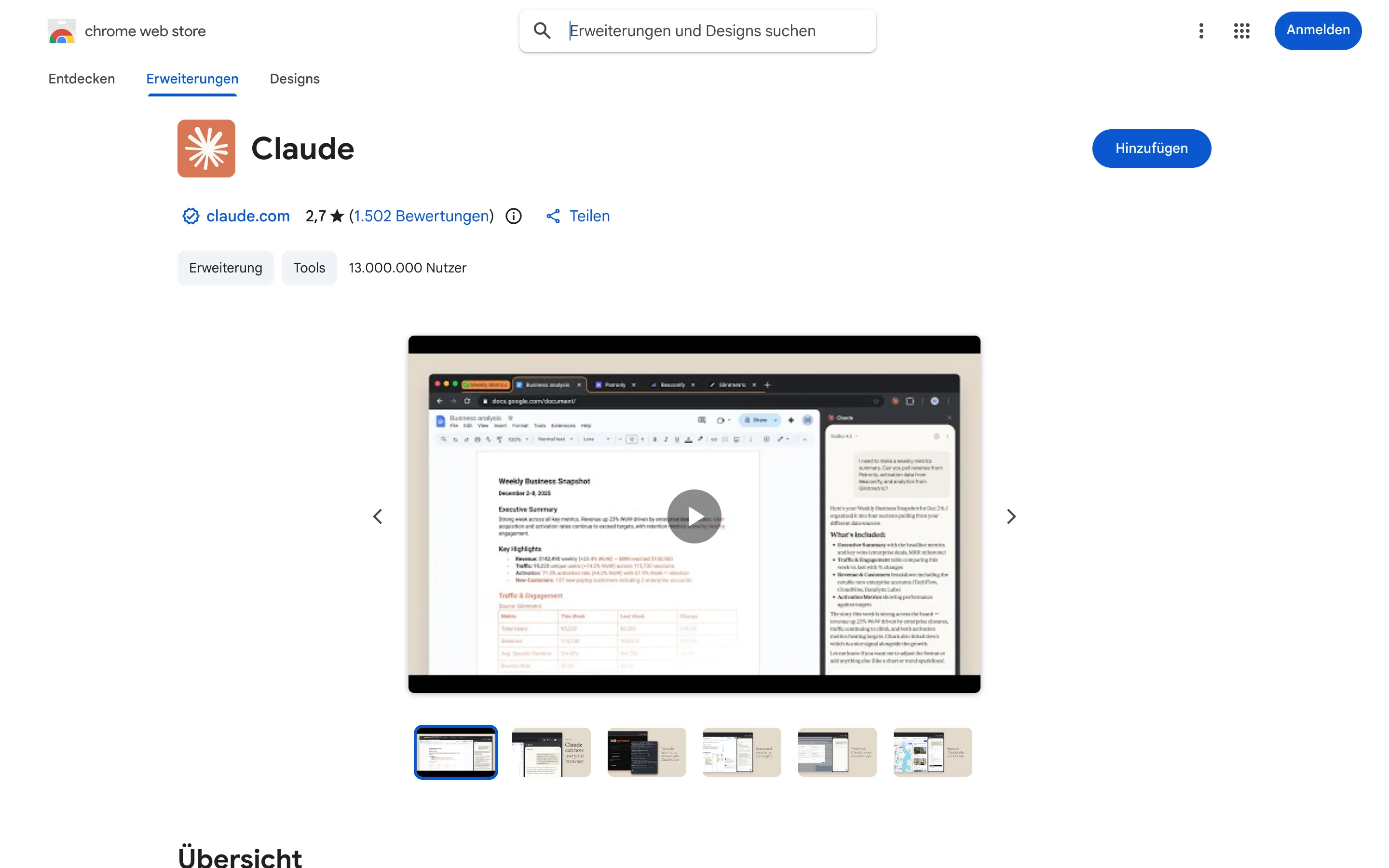
- In the Chrome Web Store, click “Add” and confirm. Look for the verified publisher claude.com - this is what the correct entry looks like:
- Click the puzzle icon in the top right and pin the Claude extension to the toolbar (pin icon) - so it is always visible
- Click the Claude icon in the toolbar and sign in with your Claude account from step 1
- Grant the requested permissions (Claude needs them to read pages and click)
Step 3: Understand permissions (1 minute, important)
Before you start clicking, you should know how Claude handles permissions:
- You decide which websites Claude may act on. On the first use on a new site, Claude asks.
- Claude pauses on sensitive actions and asks before continuing - e.g. before anything would be submitted or purchased.
- You see every click live and can interrupt at any time with Stop.
My recommendation for the start: Allow Claude the sites you need in this guide (miles-and-more.com, google.com/travel/flights, payback.de) - and keep online banking sites out entirely. More on that below in the security chapter. All details on permissions and safety mechanisms are explained in Anthropic’s official help article.
Step 4: Your first task - played through once, completely
Now the moment where the value becomes visible. We let Claude click through the Miles & More award calendar - the task that eats the most time manually, because Miles & More uses dynamic award pricing: The same flight can cost 55,000 or 90,000 miles depending on the day. You only find the cheapest day by clicking. From today, Claude clicks.
Here is how:
- Open miles-and-more.com in Chrome and log in yourself (your password is none of Claude’s business - the login is always yours)
- Navigate to the award flight search and start any search, e.g. Frankfurt → Bangkok, Business Class (so the award calendar is visible)
- Open the Claude side panel (Claude icon in the toolbar)
- Paste this prompt (adjust to your route):
We are on the Miles & More award flight search.
Check every available day in October and November
for FRA → Bangkok in Business Class. At the end,
create a table for me: date, mileage price, taxes -
sorted by cheapest mileage price.- Confirm the permission for miles-and-more.com when Claude asks
- Watch (or do something else): Claude now visibly clicks through the calendar - day by day, month by month. It takes a few minutes, but runs without you.
- Result: At the end you get a sorted table in the chat with the cheapest days - including mileage price and taxes.
That used to be 45 minutes of calendar clicking. Now you read a table at the end.
If something gets stuck: Websites change, and sometimes Claude briefly gets “lost”. A more precise hint in the chat helps (“Click the ‘Book flight’ tab at the top” or “Scroll to the calendar”). You correct it like an assistant who is on the site for the first time.
Important - you solve CAPTCHAs yourself: If a CAPTCHA or security prompt appears, Claude pauses and asks you to take over. That is by design (and, according to the official docs, exactly how it is meant to work): You solve the CAPTCHA by hand, then Claude keeps clicking. Individual websites with strict bot detection may still occasionally take you for a bot and show a security check - then briefly take over manually or reload the page. For the vast majority of tasks in this article, though, the solution works really well.
Step 5 (optional): The power path - connect Claude Code to Chrome
The side panel path from step 4 is enough for most tasks. But if you already use Claude Code (e.g. for the seats.aero search), you can have your Chrome browser controlled directly from the terminal. Claude Code connects to the installed Chrome extension via an MCP interface - the same one from step 2.
How to connect Claude Code to Chrome:
- Make sure Chrome is running and the Claude extension (step 2) is installed and signed in
- Start Claude Code with browser connection:
# Start Claude Code directly with browser connection:
claude --chrome

# Or in a running Claude Code session:
/chrome- The
/chromecommand also shows you the connection status, manages permissions and lets you pick the right window if several Chrome windows are open - Done - from now on Claude Code can click in your Chrome, just like the side panel
Prerequisite: current versions of Claude Code and the extension (both usually keep themselves up to date). Haven’t installed Claude Code yet? The installation (desktop app via claude.ai/download or terminal) is in step 1 of the seats.aero guide. All technical details on the Chrome connection: official Claude Code docs:
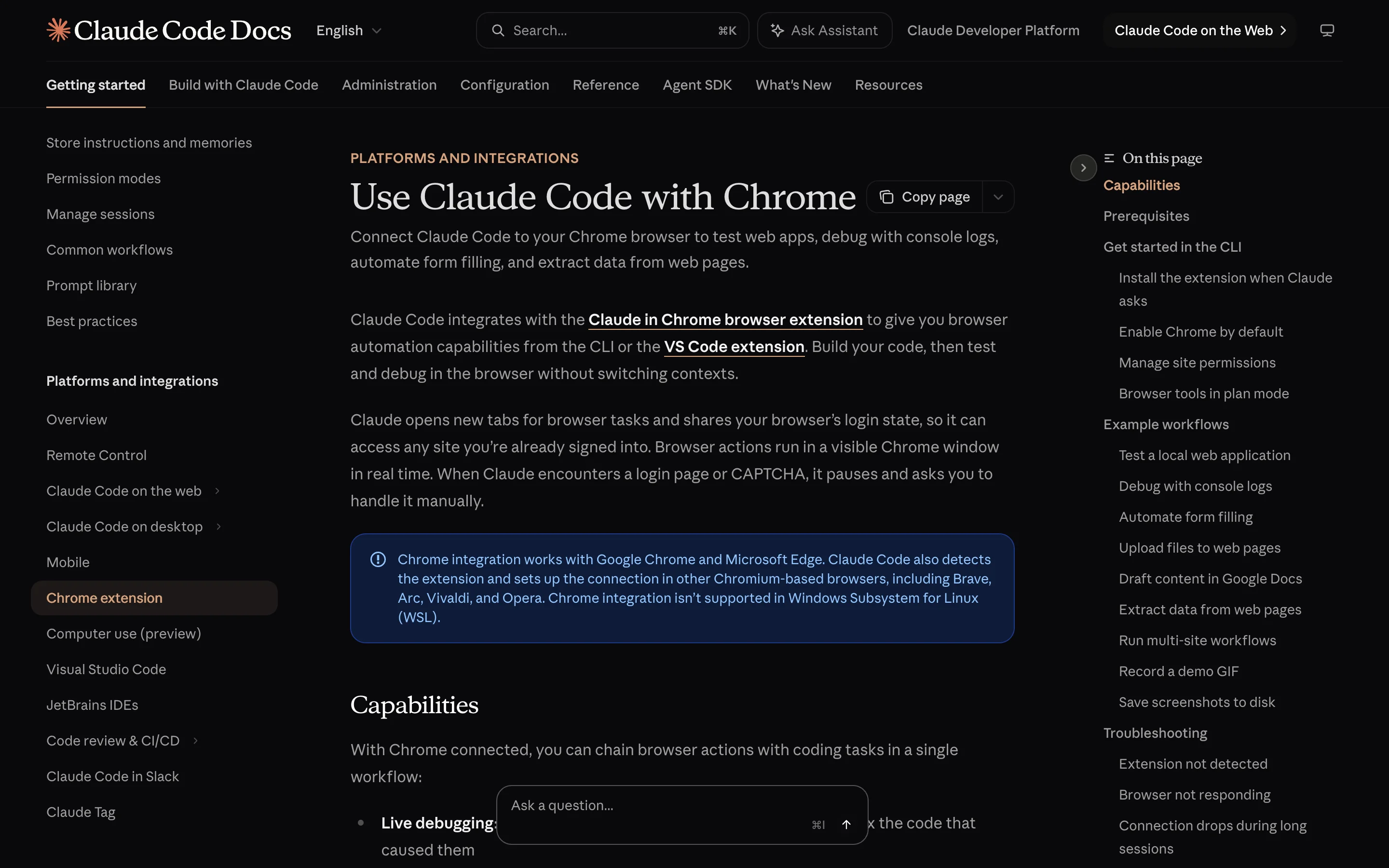
Bonus fact for non-Chrome users: According to the official docs, the Claude Code connection also works with Microsoft Edge and other Chromium browsers (Brave, Arc, Vivaldi, Opera) besides Google Chrome. The side panel (path 1), however, remains Chrome-exclusive.
Why the effort? The decisive advantage: Claude Code can combine API queries and browser control in the same chat. A single request then does both:
Search the seats.aero API for Business Class
availability FRA → Bangkok in October. Take the
3 cheapest days and then verify them directly
on miles-and-more.com in the browser - I will
log in. At the end, create a table with the
confirmed prices.
Two separate work steps (API scan, then manual verification) become a single assignment. And because Claude Code automatically reads your CLAUDE.md with search preferences (departure airports, favorite routes), you never have to explain those again either.
Which path for whom?
| Path 1: Side panel (step 4) | Path 2: Claude Code (step 5) | |
|---|---|---|
| Setup | Just the extension | Extension + Claude Code + claude --chrome |
| Operation | Chat in Chrome | Chat in the terminal, Chrome is remote-controlled |
| Combinable with seats.aero API | No | Yes - in the same chat |
| Include your own files/notes | No | Yes (Claude Code reads local files, e.g. your CLAUDE.md with search preferences) |
| Ideal for | Quick single tasks, beginners | Complete workflows, seats.aero users |
My recommendation: Start with path 1 - zero hurdle, usable immediately. If you have already set up the seats.aero method, path 2 is the logical next step.
Step 6: Verify the result and book yourself
As with the seats.aero method, the rule here is: Claude researches, you decide.
- Check the result - the table shows you the candidates, you see the final price when you click into the specific flight
- Compare with the cash price (recipe 5 in the prompt library below) - from about 1.5-2 cents per mile, a Business Class redemption is good
- Book yourself - the “Book now” click is always yours, never Claude’s
How to save even more miles when booking (e.g. departing from elsewhere in Europe): Booking Award Flights: Complete Guide
The prompt library: 6 recipes to copy
The setup is done - here are the use cases that really save time in everyday miles life. All prompts work on both paths - in the side panel just as in Claude Code with Chrome connected.
Recipe 1: Live-verify seats.aero finds
The biggest problem of the API method: seats.aero data is a snapshot. Especially First Class seats (often only 1-2) can be gone between the scan and your query. Until now that meant: go to the airline website yourself, log in, click through.
Now Claude takes over:
I found Business Class availability FRA → JFK
on June 12 on seats.aero. Open miles-and-more.com,
I will log in - then please check whether the flight
is really bookable there as an award flight and what
it costs in miles + taxes.
You do the login yourself, then Claude clicks through the award search and reports the result.
Recipe 2: Have the award calendar clicked through
The classic from step 4 - for any route:
We are on the Miles & More award flight search.
Check every available day in October and November
for FRA → Bangkok in Business Class. At the end,
create a table for me: date, mileage price, taxes -
sorted by cheapest mileage price.
You lean back, Claude clicks through the months and delivers the overview.
Recipe 3: Check transfer partners and promotions
Transfer rates and promotions change constantly. Instead of navigating through the AMEX Membership Rewards pages yourself:
Open the Membership Rewards transfer partner page
on amex.de. List all current airline and hotel
partners with their transfer rates. Are there any
transfer promotions or bonuses running right now?
Check the result against our AMEX Points Redemption Guide - that way you immediately spot when a rate has changed or a promotion is running.
Recipe 4: Review PAYBACK eCoupons
Going through the eCoupons before the weekly shop is part of the mandatory routine - and exactly the kind of busywork Claude takes off your hands:
I am logged into my PAYBACK account. Go through the
eCoupons and tell me: Which coupons are worth it for
an EDEKA shop of about €80 this week? Are there
multiple-points coupons for dm?
Which coupons you then actually activate is your decision - the basics are in the PAYBACK eCoupons Guide.
Recipe 5: Compare cash price vs. mileage price
Whether a redemption is worth it is decided by the cents-per-mile value. For that you need the current cash price:
Open Google Flights and find the cash price for
FRA → New York in Business Class on June 12-26.
I have an award offer for 58,000 miles + €680
taxes. Calculate how many cents per mile the
redemption is worth.
From about 1.5-2 cents per mile, a Business Class redemption is good. The complete valuation logic: What is a mile worth?
Recipe 6: Compare several portals in parallel
Claude can manage several tabs at once - ideal for program comparisons:
Open miles-and-more.com and ba.com in two tabs.
Compare what the flight FRA → London on September 15
in Business Class costs in miles at Miles & More
and what British Airways charges in Avios.
Especially on short-haul routes, the Avios price is often significantly cheaper - a comparison like this shows that in two minutes.
Security: The rules you should follow
Claude in Chrome acts in your real browser - with your real logins. Anthropic has built in safety mechanisms (Claude pauses on sensitive actions and asks), but a few rules still belong here:
- Type logins yourself. Passwords have no place in the chat. You log in, then Claude takes over the click work.
- Always complete bookings and payments yourself. Claude may search, compare and prepare - the final “Book now” click is yours. Always.
- Trigger miles transfers yourself. Transfers (e.g. AMEX MR → airline) are irreversible. Claude calculates and recommends, you click.
- Keep online banking out. You don’t need an AI assistant in the browser for account overviews and transfers.
- Watch instead of blindly trusting. Claude works visibly in your browser - that is exactly the advantage over a black box. If something looks off, you simply stop.
With these rules, Claude in Chrome is what it is meant to be: a research assistant that takes the click work off your hands - not an autopilot for your money.
The power setup: seats.aero API + browser in one chat
With path 2 (Claude Code + claude --chrome), the complete workflow runs in a single session:
- Broad search via API: Claude Code queries seats.aero - “Which days have Business Class to Tokyo in October?” (guide here)
- Live verification in the browser: Claude checks the 2-3 best hits right afterwards on miles-and-more.com - does the seat really exist, what does it currently cost? No context switch, same conversation.
- Cash price check in the browser: Open Google Flights, calculate cents per mile
- You book - manually, with verified data
That removes exactly the step that used to cost the most time: manually verifying every single find.
Cost of the complete setup: ~€18/month (Claude Pro, includes both) + ~€9/month (seats.aero Pro, cancellable monthly). A single well-redeemed Business Class award saves €2,000-8,000 versus the cash price.
Limits: What Claude in Chrome is not (yet) good at
An honest assessment so you have no false expectations:
- Speed: Claude clicks like a human - one website after another. For mass scans across dozens of routes, the seats.aero API remains clearly faster.
- Desktop only: No Firefox, no Safari, no smartphone. The side panel only runs in Chrome; the Claude Code connection at least also works in Edge and other Chromium browsers.
- Websites change: If an airline rebuilds its site, Claude can briefly seem “lost” - then a more precise prompt helps (“Click top right on…”).
- CAPTCHAs remain manual work: On CAPTCHAs and security prompts, Claude pauses and you have to step in yourself - that cannot be automated (and is not supposed to be).
- Bot detection can trigger: Individual websites with strict bot detection occasionally show a security check even though you are sitting right there. Then briefly take over manually or reload. Respect it when a site doesn’t like automation - Claude as an assistant in your personal research is something different from mass scraping. For most use cases it still runs very well.
- No substitute for knowledge: Claude clicks for you - but which redemption is worth it, which transfer partner is the right one and how you collect enough miles in the first place, you need to know (or feed Claude the right basics).
No miles yet? How to fill the account
The best automation is worthless without miles in the account. The fastest way is welcome bonuses:
| Card | Welcome bonus | Enough for |
|---|---|---|
| AMEX Platinum Business* | 250,000 MR | First Class Tokyo round trip |
| AMEX Platinum Personal* | 85,000 MR | Business Class USA one-way |
| AMEX Business Gold* | 50,000 MR | Business Class Europe round trip |
| AMEX Gold* | 50,000 MR | Business Class Europe round trip |
All cards in detail: Credit Cards with Welcome Bonus 2026
Frequently Asked Questions (FAQ)
What does Claude in Chrome cost?
The extension itself is free, but you need a paid Claude plan (Pro, Max, Team or Enterprise). Claude Pro costs from ~€18/month. If you already use Claude for the seats.aero method, there are no additional costs.
Do I need programming skills?
No. You write in plain language what Claude should do in the browser (“Check the award calendar for October and make me a table”), and Claude clicks through by itself. It is more like watching over an assistant’s shoulder than like programming.
Does it also work with Firefox, Safari or on the phone?
Firefox, Safari and mobile devices are not supported. The side panel (path 1) only works in Google Chrome on the desktop (Mac/Windows). The Claude Code connection (path 2), according to the official docs, additionally works with Microsoft Edge and other Chromium browsers (Brave, Arc, Vivaldi, Opera).
Can Claude accidentally buy or book something?
Claude pauses on sensitive actions and asks before continuing. On top of that, my clear recommendation: always complete bookings, payments and miles transfers yourself. Claude searches and compares - you make the final click.
Should I give Claude my passwords?
No, never in the chat. You log in on the website yourself, then Claude continues working in your logged-in session. Your credentials stay with you.
What is the difference between the side panel and Claude Code?
Both use the same Chrome extension. In the side panel you chat directly in Chrome - zero setup, ideal for quick single tasks. With Claude Code you chat in the terminal and Claude remote-controls Chrome (connected via claude --chrome or the /chrome command). The advantage of Claude Code: It can combine browser control with API queries (e.g. seats.aero) and your local files in the same chat.
Which is better: seats.aero API or Claude in Chrome?
Both together. The seats.aero API is unbeatable for broad availability scans across 25+ programs. Claude in Chrome delivers real-time data straight from the airline website, sees your logged-in view (e.g. dynamic Miles & More prices) and works on sites that have no API at all (PAYBACK, AMEX promotion pages). With Claude Code (path 2), both even run in the same chat.
What happens with CAPTCHAs and bot detection?
You always solve CAPTCHAs yourself by hand: Claude pauses automatically and asks you to take over - then it keeps clicking. Individual websites with strict bot detection may occasionally show a security check; briefly taking over manually or reloading the page helps. For the vast majority of use cases (award calendars, eCoupons, price comparisons), the solution works very well.
Does Claude click faster than I do?
Not necessarily faster per click - but it works while you do something else, never gets impatient and neatly summarizes everything in a table at the end. The time gain lies in parallelizing and in dropping the busywork.
Is browser automation allowed on airline websites?
Claude as a personal assistant in your own research - in your browser, at your pace, for your booking - is something different from mass automated scraping. Stick to personal use and respect it when a website technically prevents automation.
Conclusion: Claude does the click work now
Claude in Chrome closes exactly the gap the API method left open: the manual verification work on real websites. Clicking through award calendars, verifying seats.aero finds, reviewing eCoupons, comparing cash prices - all tasks that used to eat your time and now run on the side.
Your step-by-step summary:
- Get a Claude subscription at claude.ai (from ~€18/month) - if you don’t have one yet
- Install the extension: claude.com/claude-in-chrome → Add to Chrome → sign in → pin
- Understand permissions: Claude asks per website, you can stop at any time
- First task: open miles-and-more.com, log in yourself, open the side panel, paste the calendar prompt - read the table
- Optional power path: connect Claude Code via
claude --chrome- combines API search and browser verification in one chat - Verify and book yourself - the last click is always yours
And if you want the full setup: Combine path 2 with the automated availability search via seats.aero - then Claude handles the search AND the verification in a single chat.
Want not just to search faster, but to collect enough miles for Business and First Class in the first place? That is exactly what the MEILENKÖNIG Premium Bundle is for: The 14-chapter handbook (PDF) + AudioBook shows you the complete strategy - from the optimal card combination to the points machine to the 6-month master plan. One-time €99, a single award flight brings back a multiple of that.
All strategies in the Premium Bundle
14 chapters + audiobook (2:07h) with the complete system for 500,000+ points in your first year.
Get it now for just 99€
MEILENKÖNIG
Expert for miles, points, and credit card strategies. Helps travelers fly business & first class for a fraction of the price.